Ultimate Vehicle Tuning (And Improved Driving)
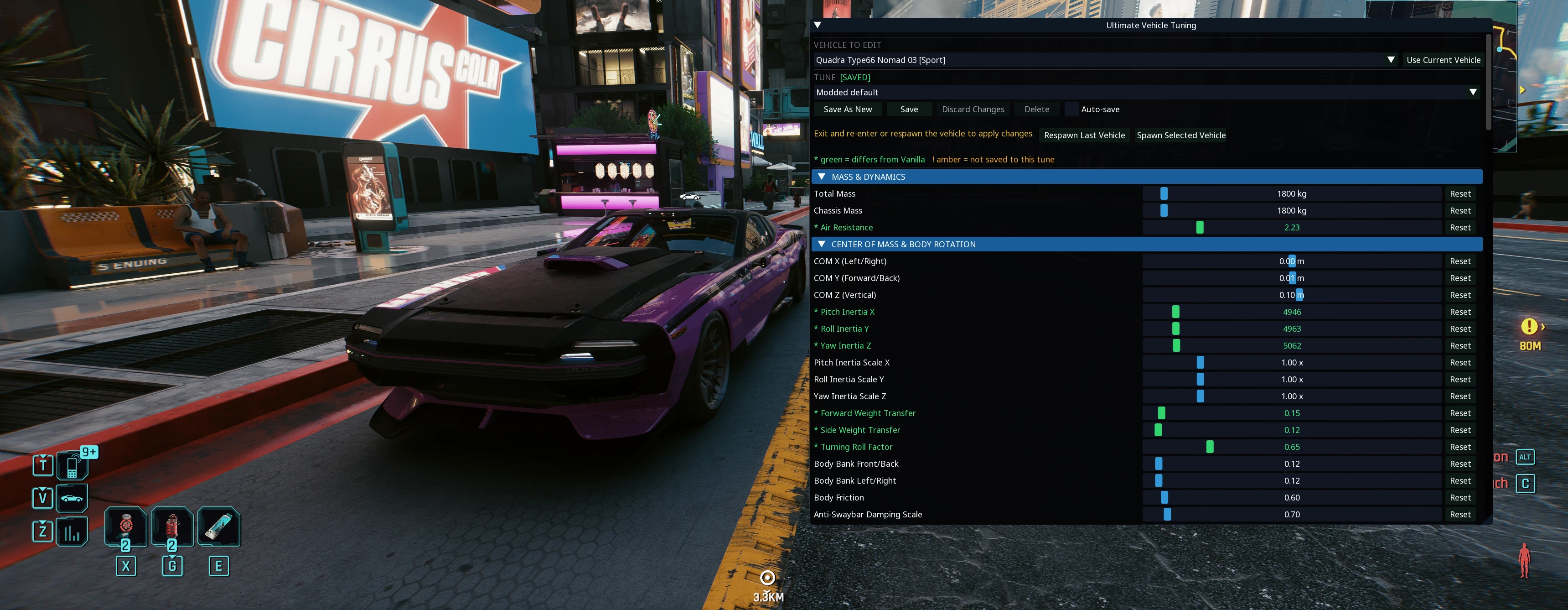
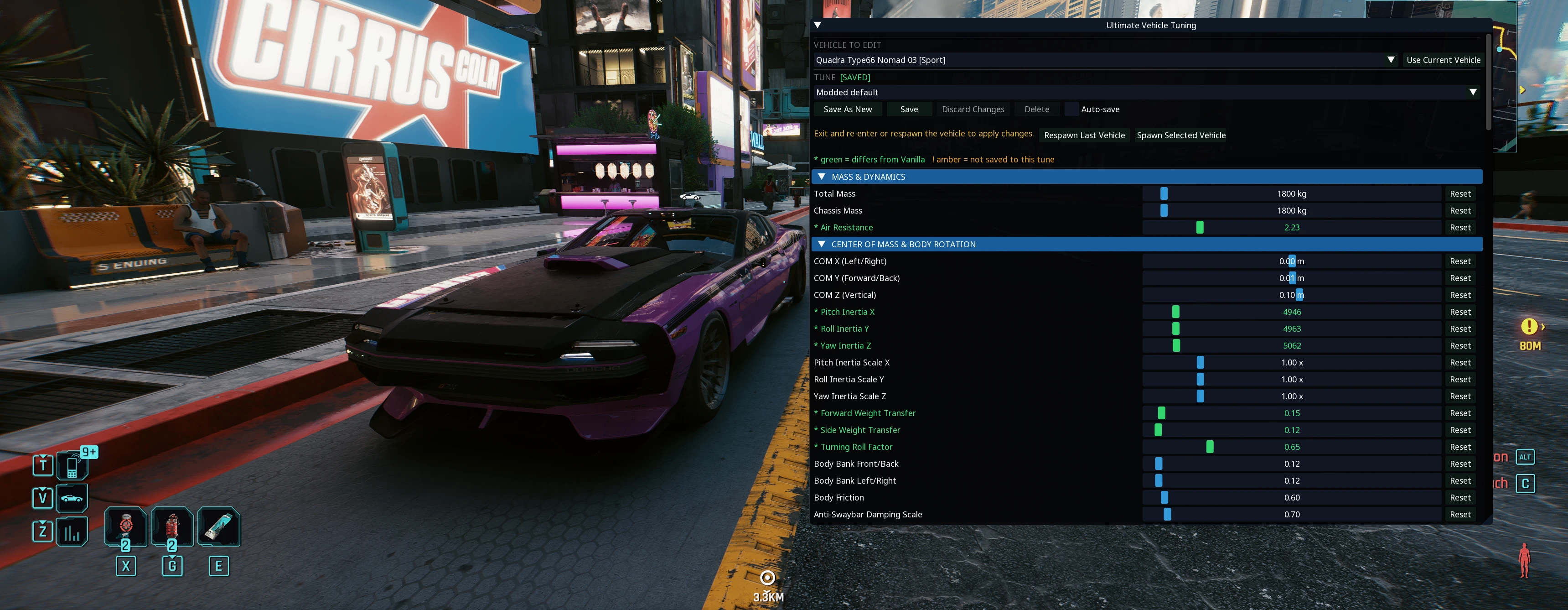
Ultimate Vehicle Tuning aims to massively improve Cyberpunk 2077's driving experience for vanilla vehicles out of the box, while also giving you total control over every vehicle's tune and handling parameters.
 查看大图
[size=6][b]Ultimate Vehicle Tuning[/b][/size]
[b]Do you hate driving in Cyberpunk 2077?[/b]
[b]Have you tried other "improved" vehicle or driving mods, only to find that driving STILL feels bad no matter what?[/b]
[b]Do you play driving games such as Forza Horizon and wish Cyberpunk 2077 had a similar handling feel?[/b]
[line]
If the answer to any of those questions is yes, this mod could be for you.
Ultimate Vehicle Tuning aims to massively improve Cyberpunk 2077's driving experience out of the box while also giving YOU control over how every vehicle handles.
It exposes a huge range of vehicle-handling parameters on a per-vehicle basis through a Cyber Engine Tweaks UI. You can save, load, and switch between any number of custom tunes for each vehicle.
The mod ships with a Modded default tune for every supported vehicle. These tunes use increased realism as a guide, but prioritize driving enjoyment, smoothness, predictability, and controllability over strict simulation.
You can also switch any vehicle back to its untouched Vanilla setup at any time from the mod's UI and make your own changes starting Vanilla.
[line]
[size=5][b]The problems with vanilla driving[/b][/size]
While making this mod, I compared Cyberpunk 2077's vehicle handling back-to-back with driving games such as Forza Horizon. I identified several reasons why vanilla driving often feels unsatisfying:
[size=4][b]1. Steering input and turn radius[/b][/size]
This is probably the most noticeable problem. The base game has very slow steering input, and its speed-sensitive steering feels inconsistent compared with dedicated driving games. Vanilla steering can feel unresponsive and heavy at low speeds, yet twitchy and unpredictable at high speeds.
[size=4][b]2. Poorly balanced tire grip[/b][/size]
Many cars have an unbalanced front-to-rear grip setup. Excessive front grip combined with insufficient rear grip can cause abrupt oversteer, while other setups produce excessive understeer and delayed directional response.
[size=4][b]3. Unrealistically low body inertia[/b][/size]
Many vehicles have extremely low roll inertia compared with their pitch and yaw inertia. Combined with the vanilla suspension tuning, this can make cars feel light, plastic, and excessively twitchy over bumps.
[size=4][b]4. Poor suspension balance[/b][/size]
Spring stiffness, damping, rebound, anti-roll stiffness, weight transfer, and tire grip all interact. Poorly matched values contribute to snap oversteer and unpredictable handling. The good news is that the physics engine is capable of much better behavior; many of the problems come from how individual vehicles are tuned.
[size=4][b]5. Conservative performance[/b][/size]
Vanilla vehicles often have acceleration and top-speed tuning that is conservative for their class. Despite the UI showing an "MPH" value, vehicle and gear data use meters per second for internal calculations, and absolute speeds are much lower than the displayed number would suggest. Night City's dense, uneven streets also make real-world performance impractical for much of the vehicle roster, so the included tunes intentionally do not attempt to turn every vehicle into a realistic performance simulation.
[line]
[size=5][b]How the included Modded default tunes feel[/b][/size]
[list]
[]The handling philosophy is grounded in increased physical plausibility, but realism is not pursued at the expense of fun. The primary goal is to make every vehicle feel satisfying, smooth, responsive, and easy to control while preserving its individual character.
[/]
[]Steering input speed and maximum steering angle now adjust more naturally as speed increases. Faster base steering and carefully reduced high-speed steering angles allow more precise cornering without making vehicles uncontrollably twitchy.
[/]
[]Vehicles feel heavier and more substantial because their body inertia has been rebalanced. Extremely low roll inertia has been corrected, with pitch and yaw inertia adjusted where necessary.
[/]
[]Snap oversteer and unpredictable twitchiness are greatly reduced unless you intentionally provoke them.
[/]
[]Tire grip, weight transfer, and suspension have been rebalanced across many vehicles. Sport and hypercar models can still oversteer, but it is much more progressive and controllable.
[/]
[]Performance changes are deliberately selective rather than a fleet-wide attempt at real-world acceleration and top speed. Most vehicles retain acceleration close to their vanilla balance, preserving useful distinctions between economy cars, sports cars, race variants, and hypercars on Night City's roads.
[/]
[]Most vehicles received only conservative top-end extensions. More extensive acceleration-focused gearing changes were intentionally reserved for selected iconic and high-performance vehicles, including the Porsche 911 Turbo and Cabriolet, Quadra Turbo-R V-Tech, Mizutani Shion MZ2, Quadra Type-66 Avenger, and Rayfield Caliburn variants. The Caliburns, Rayfield Aerondight, Herrera Riptide, Turbo-R V-Tech, Quadra Type-66 GT and Avenger variants, Thorton Merrimac Warlock, and both Porsche 911 variants also received notable air-resistance revisions where their original drag prevented appropriate performance.
[/]
[]The included stopwatch, optional accurate MPH/KPH speedometer archives, Easy gearing controls, and advanced parameters remain available for players who want to pursue more realistic performance or create a different balance.
[/]
[]Bikes receive substantially more rear lateral grip, revised inertia on all axes, increased maximum tilt on sport bikes, and less twitchy tilt/lean speed. An optional bike-curves archive allows bikes to lean more naturally at lower speeds.
[/]
[]Together, these changes make bikes feel much more fluid and predictable instead of stiff one moment and suddenly unstable the next. Testing established that bike turning radius is largely dictated by the selected wheel friction map and its referenced surface curves rather than by hard-coded bike-controller behavior. The included bike tunes therefore use selected existing car-focused friction maps to provide tighter, more controllable cornering.[/]
[/list]
[line]
[size=5][b]Requirements[/b][/size]
[list]
[]Cyberpunk 2077[/]
[]Cyber Engine Tweaks (CET)[/]
[/list]
[size=4][b]Recommended companion mods[/b][/size]
These are optional and are not required for Ultimate Vehicle Tuning:
[list]
[][url=https://www.nexusmods.com/cyberpunk2077/mods/13986]Dynamic Gravity Modifier[/url] adds speed-dependent gravity assistance. It complements UVT by helping cars and bikes remain planted over bumps, crests, and uneven roads instead of lifting too readily.[/]
[][url=https://www.nexusmods.com/cyberpunk2077/mods/14454?tab=description]Null Angle Correction / Enhanced Car Physics[/url] changes the game's airborne angle-correction and air-control behavior. It pairs well with UVT's grounded handling changes by making jumps and airborne movement less dependent on the vanilla correction system.[/]
[/list]
Install and configure these separately according to their own documentation.
[line]
[size=5][b]Installing the main mod[/b][/size]
[size=4][b]Manual installation[/b][/size]
[list=1]
[]Install Cyber Engine Tweaks and confirm that its overlay opens in-game.[/]
[]Download the main Ultimate Vehicle Tuning file.[/]
[]Extract the archive into your Cyberpunk 2077 game folder.[/]
[]Allow the included folders to merge.[/]
[]Confirm that this file exists:
[code]Cyberpunk 2077\bin\x64\plugins\cyber_engine_tweaks\mods\UltimateVehicleTuning\init.lua[/code][/]
[]Launch the game and open the CET overlay.[/]
[/list]
If you use a mod manager, install the main file normally and verify that it produces the folder structure shown above.
[size=4][b]Installing the optional bike curves[/b][/size]
The optional bike-curves archive is distributed as a separate download on the same Nexus Mods page.
[list=1]
[]Download the optional bike-curves file.[/]
[]Extract it into your Cyberpunk 2077 game folder.[/]
[]Confirm that the archive is installed at:
[code]Cyberpunk 2077\archive\pc\mod\UltimateVehicleTuning_Curves.archive[/code][/]
[/list]
The optional file overrides the relevant vanilla bike curves globally. It works alongside the main mod but is not required for the tuning UI or the included vehicle tunes.
Restart the game after installing or removing the optional archive.
[line]
[size=5][b]Uninstalling[/b][/size]
[list=1]
[]Delete:
[code]Cyberpunk 2077\bin\x64\plugins\cyber_engine_tweaks\mods\UltimateVehicleTuning[/code][/]
[]If you installed the optional bike curves, also delete:
[code]Cyberpunk 2077\archive\pc\mod\UltimateVehicleTuning_Curves.archive[/code][/]
[/list]
The mod does not permanently alter your save file or the game's original vehicle records. Its TweakDB changes exist only while the mod is loaded, so vehicles will return to their vanilla tuning after the mod is removed and the game is restarted.
Custom tunes are stored inside the UltimateVehicleTuning mod folder. Back up that folder before uninstalling if you want to preserve tunes for a future installation.
[line]
[size=5][b]Using the mod in-game[/b][/size]
[size=4][b]Opening the UI[/b][/size]
[list=1]
[]Load a saved game.[/]
[]Open the Cyber Engine Tweaks overlay using your configured CET key.[/]
[]Open the Ultimate Vehicle Tuning window.[/]
[/list]
[size=4][b]Selecting a vehicle[/b][/size]
[list]
[]Choose a vehicle from the Vehicle to Edit list.[/]
[]Click Use Current Vehicle to select the vehicle you are currently driving.[/]
[]Click Spawn Selected Vehicle to spawn the vehicle selected in the editor, even if V does not own it.[/]
[]Click Respawn Last Vehicle to remove and respawn the last vehicle you used.[/]
[/list]
[size=4][b]Applying changes[/b][/size]
Exit and re-enter the vehicle or use Respawn Last Vehicle after changing a tune to apply the changes.
[size=4][b]Choosing a tune[/b][/size]
Each vehicle has its own tune selection:
[list]
[]Vanilla restores the vehicle's untouched session baseline.[/]
[]Modded default uses the tune included with this mod.[/]
[]Custom tunes are tunes you create with Save As New.[/]
[/list]
The selected tune is remembered separately for every vehicle. Once you choose a tune, the mod will continue loading it for that vehicle until you select another one.
[size=4][b]Unknown traffic vehicles[/b][/size]
NPC traffic variants and police vehicles are not all included in the game's normal player-vehicle list. At startup, the mod finds non-player car and truck records and applies a conservative generic Modded default directly in memory.
The generated fallback improves steering response, uses safe speed-sensitive steering values, reduces and bounds weight transfer, sets turning roll to 0.65, and sets roll inertia to the midpoint of each vehicle's stock pitch and yaw inertia. These records stay hidden from the normal vehicle list; a mounted traffic vehicle can still be inspected as using "Generic modded default." The records successfully updated are written to UltimateVehicleTuning_TrafficVehicles.log.
[size=4][b]Creating and editing a custom tune[/b][/size]
[list=1]
[]Select the vehicle and starting tune you want.[/]
[]Click Save As New.[/]
[]Enter a unique filename and confirm.[/]
[]Adjust the sliders.[/]
[]Auto-save is disabled by default. Enable it to save every change automatically, or leave it disabled and click Save manually.[/]
[]Respawn or re-enter the vehicle to test the result.[/]
[/list]
[size=4][b]Managing changes[/b][/size]
[list]
[]Reset beside a parameter restores that parameter to its Vanilla value.[/]
[]Discard Changes reloads the active tune from disk.[/]
[]Save writes the current values to the active custom tune.[/]
[]Copy to Other Vehicle creates a separately named copy of the current tune for another vehicle without activating it.[/]
[]Delete permanently removes the selected custom tune. Vanilla and Modded default cannot be deleted.[/]
[]Selecting Vanilla is the quickest way to compare your tune against the original vehicle.[/]
[/list]
[quote][b]Tip:[/b] Change one system at a time and test it before continuing. Vehicle parameters interact heavily, so changing many unrelated values at once can make it difficult to identify what helped or hurt.[/quote]
[line]
[size=5][b]Tuning guide[/b][/size]
This section covers the most useful controls. The advanced sections expose many additional values, but most tunes can be created with the parameters below.
[size=4][b]Mass & Dynamics[/b][/size]
[list]
[]Total Mass and Chassis Mass affect how heavy the vehicle behaves. Keep them equal unless you have a specific reason not to.[/]
[]Air Resistance primarily affects acceleration and maximum speed at the high end.[/]
[]Increasing mass can make a vehicle feel more substantial but also reduces acceleration and makes suspension tuning more demanding.[/]
[/list]
[size=4][b]Center of Mass & Body Rotation[/b][/size]
[list]
[]COM Z controls center-of-mass height. Lower values generally reduce weight transfer and body roll; higher values make the chassis feel more active.[/]
[]Pitch, Roll, and Yaw Inertia control how strongly the body resists rotation on each axis.[/]
[]Increase Roll Inertia if the vehicle reacts too violently to small bumps or feels like a lightweight plastic shell.[/]
[]Reduce Yaw Inertia cautiously if turn-in feels too slow.[/]
[]Forward and Side Weight Transfer affect how strongly the chassis loads and unloads its tires under braking, acceleration, and cornering.[/]
[]Turning Roll Factor changes how much the body rolls while steering.[/]
[/list]
[size=4][b]Engine & Gearing[/b][/size]
[list]
[]Max Torque controls overall engine output. Large changes can affect both acceleration and maximum speed.[/]
[]Resistance affects how quickly engine speed falls and can contribute to engine braking.[/]
[]Max RPM sets the engine's upper operating range.[/]
[]Gear Change Time and Gear Change Cooldown control shift timing.[/]
[]Flywheel Inertia affects engine-speed response more than the vehicle's basic traction or handling.[/]
[]In the default Easy mode, Final Drive scales all forward gear ranges together. Moving left favors launch acceleration; moving right favors top-speed gearing.[/]
[]Torque Decay Curve controls how quickly torque falls away through the higher gears.[/]
[]The table below these controls previews each gear's speed range, RPM range, and torque multiplier.[/]
[]Enable Advanced gearing mode to edit every gear directly. The first gear record is Reverse; the following records contain the forward gears.[/]
[]Use Respawn Last Vehicle after gearing changes. The Acceleration Stopwatch can be opened from this section to measure checkpoints and top speed.[/]
[/list]
[size=4][b]Suspension[/b][/size]
[list]
[]Spring Rate controls how much force is required to compress the suspension.[/]
[]Damping controls compression movement, while Rebound controls how quickly the suspension extends again.[/]
[]Anti-Roll resists left-to-right suspension movement during cornering.[/]
[]A softer front setup can improve front-wheel compliance and grip, but going too soft can make steering response slower.[/]
[]A stiffer rear setup can make the vehicle rotate more readily, but too much rear stiffness can cause abrupt oversteer.[/]
[]If a vehicle feels floaty, increase damping and spring stiffness gradually rather than changing either one drastically.[/]
[]If it skips across bumps and loses grip, the suspension may be too stiff or over-damped.[/]
[/list]
[size=4][b]Tires[/b][/size]
Front and Rear Lateral Grip are among the most important handling controls:
[list]
[]If the vehicle oversteers too easily, increase Rear Lateral Grip and/or reduce Front Lateral Grip.[/]
[]If the vehicle understeers, increase Front Lateral Grip and/or reduce Rear Lateral Grip.[/]
[]Make small changes. Differences of only a few hundredths can be noticeable.[/]
[/list]
Longitudinal Grip primarily affects acceleration and braking traction.
Base Friction and Rolling Resistance are lower-level tire parameters. They usually do not need large adjustments.
[size=4][b]Steering[/b][/size]
[list]
[]Turn Speed+ controls how quickly steering is added.[/]
[]Turn Speed- controls how quickly the wheels return toward center.[/]
[]Steering Assist maps to the game's perfect-steering assistance. Extreme values can make steering feel artificial.[/]
[/list]
[size=4][b]Speed-Sensitive Steering[/b][/size]
This is the most useful section for changing how cars respond at different speeds:
[list]
[]Low-Speed Max Angle sets the base physical steering angle.[/]
[]Base, Mid, and High Thresholds define the speed ranges over which steering changes.[/]
[]Mid and High Angle Multipliers reduce maximum steering angle as speed rises.[/]
[]Mid and High Speed Multipliers control steering movement speed at those ranges.[/]
[]Input Progression changes how controller input is shaped.[/]
[/list]
If a car feels unresponsive, first examine its maximum angle, angle multipliers, and steering rates. If it is twitchy at high speed, reduce the High Angle Multiplier or move the High Threshold lower.
These steering parameters also affect bikes, but the wheel friction map and its surface curves have a much larger influence on their physical turning radius. Tune steering response and the friction map together rather than relying on steering angle alone.
[size=4][b]Wheel Friction Map[/b][/size]
The friction map selects a complete handling preset and its referenced asphalt, ground, and other surface curves. It can substantially change physical trajectory, turn radius, breakaway behavior, and the balance between grip and sliding; it is not merely a cosmetic or tire-grip multiplier.
UVT allows car and bike maps to be cross-tested. The included bike tunes use existing car-focused maps where they produce tighter and more predictable cornering than the vanilla bike map.
Custom
[code]CarDrivingFrictionMap.[/code]and
[code]BikeDrivingFrictionMap.[/code]records are also supported and are discovered automatically when present. This allows vehicle authors and advanced users to provide custom friction maps and curve sets through WolvenKit archive-based mods, then select and save them as part of a UVT tune.
[size=4][b]Grip & Slip Model[/b][/size]
These values control when the tire model begins calculating slip and how strongly the underlying slip curves are applied. They are advanced controls; tune basic lateral and longitudinal grip first.
[size=4][b]Rotation & Drift Limiter[/b][/size]
[list]
[]Maximum Angular Speed limits how quickly the vehicle can rotate.[/]
[]Drift Rotation Limit and its speed thresholds influence rotation while sliding.[/]
[]Rotation Smoothing Time affects how abruptly rotational limits are applied.[/]
[/list]
If a vehicle refuses to rotate despite having enough grip and steering angle, test these limits. Very high limits can make spins violent and difficult to recover.
[size=4][b]Braking[/b][/size]
[list]
[]Front Brake and Rear Brake set braking torque per axle.[/]
[]More front bias is generally stable but can promote understeer under braking.[/]
[]More rear braking can help rotation but may cause snap oversteer.[/]
[]Handbrake controls handbrake torque.[/]
[/list]
Advanced gearing exposes Minimum and Maximum Speed, Minimum and Maximum RPM, and Torque Multiplier for every gear.
Gear behavior is highly interconnected and is not a simple hard speed cap. Make small changes and test acceleration, shift points, and top speed after every adjustment.
Internal speed values are in meters per second:
[list]
[]1 m/s = 3.6 km/h[/]
[]1 m/s = approximately 2.237 mph[/]
[/list]
[size=4][b]Dynamic Rear Grip and Handbrake Grip Helper[/b][/size]
These sections control assistance applied when the rear tires begin slipping or when the handbrake is used. They are useful for making oversteer progressive instead of abrupt.
[size=4][b]Traction & Acceleration Helpers[/b][/size]
These include uphill compensation and low-speed acceleration assistance. Large values can produce unrealistic launch performance, so adjust them conservatively.
[size=4][b]Downforce & Air Control[/b][/size]
[list]
[]Ground Factor increases the high-speed force keeping the vehicle planted.[/]
[]Minimum and Maximum Speed define the range over which that effect builds.[/]
[]Air-control sections affect pitch, yaw, and roll while the vehicle is airborne, not normal grounded steering.[/]
[/list]
[size=4][b]Burnout & Launch Grip[/b][/size]
These controls affect driven-wheel slip, launch assistance, burnout behavior, and the transition between wheelspin and grip. They are useful for powerful cars that either bog down or launch with excessive wheelspin.
[size=4][b]Bike Dynamics[/b][/size]
[list]
[]Maximum Tilt controls the allowed visual lean angle.[/]
[]Tilt Speed and Tilt Return Speed control how quickly the bike leans and returns upright.[/]
[]COM offset and tilt PID values affect bike stabilization.[/]
[/list]
Some bike lean controls primarily affect animation, body attitude, and stabilization. Additional lean alone does not necessarily produce a tighter turn because physical trajectory is influenced much more strongly by the selected friction map and its surface curves.
[size=4][b]Wheel Geometry, Water, Flat Tires, and other advanced sections[/b][/size]
These sections expose physical wheel dimensions, axle roles, buoyancy, damaged-tire behavior, and other specialized systems. They are included for experimentation but are rarely necessary for a normal handling tune.
[line]
[size=5][b]Credits[/b][/size]
Vehicle Physics Config was the original inspiration for this project.
Thanks to the Cyber Engine Tweaks team for making the in-game scripting and UI possible, and to the WolvenKit team for the tools used to create the optional bike-curves archive.
正在加载版本记录…
正在加载评论…
评论在新手盒子客户端中发表,这里同步展示。